

- Make sure a copy of your excel file before doing any changes.
- Right click and rename your excel file to example.xlsx to example.xlsx.zip.
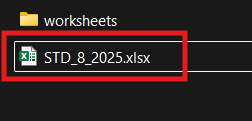

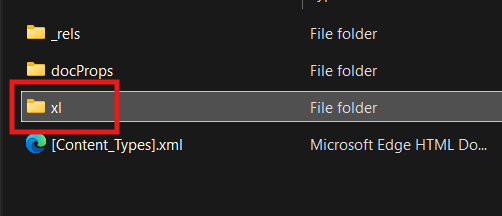
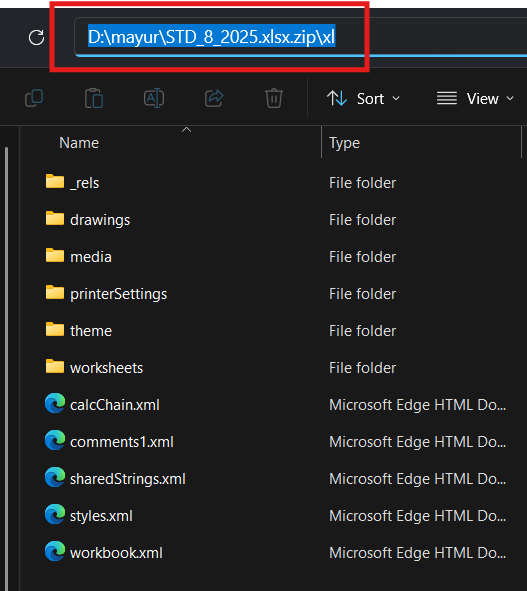
- Double click on zip file and go to xl
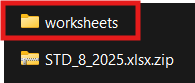
- Copy the worksheet folder from zip to another path ( like on your Desktop or Document)
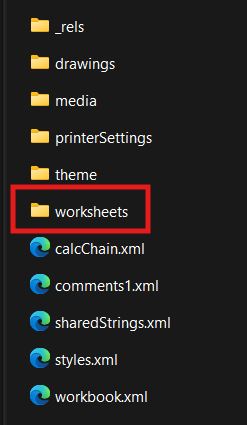
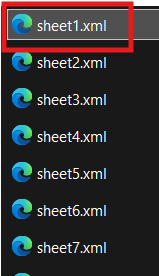
- Then go to the worksheet folder
- Right click and open the sheet file in note pad
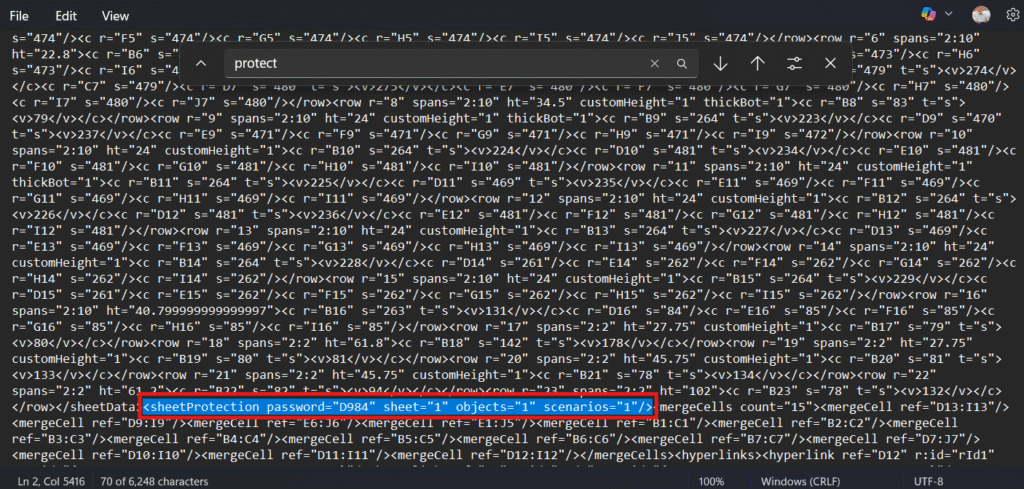
- Press ctrl + F and type protect then find it.
- Remove the following script from sheet file.
- Make sure it will be under <to>.
- Do the changes in all your sheet files.
- Then replace the worksheet folder in your zip file.
- Now rename your file .zip to .xlsx
- Open your Excel file and check that your protection is removed.